Advertisement
Some scenarios
we need to trigger a flow for a selected item, in that case we can add button
in the SharePoint list view itself, using JSON we can add the button easily to
trigger a power automate from default environment.

Step 1: Create a single line of text column as per the below screen shot.
 |
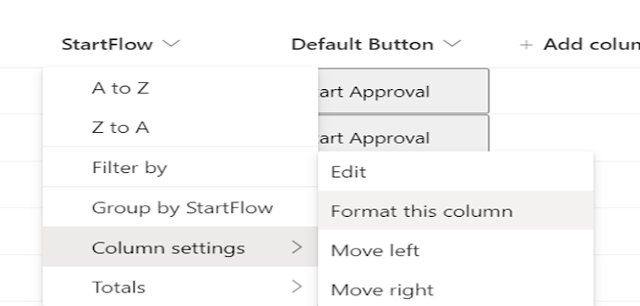 Step 3: To add the power automate flow id, we can get it
from flow as per the below screen shot.
Step 3: To add the power automate flow id, we can get it
from flow as per the below screen shot.Click on the flow name, in the
browser we can get the flow id.

Add the JSON code as per the below.

{
"$schema": "https://developer.microsoft.com/json-schemas/sp/v2/column-formatting.schema.json",
"elmType": "button",
"txtContent": "Start
Approval",
"customRowAction": {
"action": "executeFlow",
"actionParams": "{\"id\":
\"e4691fd4-368c-4ae7-8b1f-4e998a9c7a42\"}"
}
}
Button will be created as per the below screen shot

If we want to design the button
with different color, we can use the below code.
{
"$schema": "https://developer.microsoft.com/json-schemas/sp/v2/column-formatting.schema.json",
"elmType": "button",
"txtContent": "Start
Approval",
"customRowAction": {
"action": "executeFlow",
"actionParams": "{\"id\": \"e4691fd4-368c-4ae7-8b1f-4e998a9c7a42\"}"
},
"style": {
"background-color":
"Green",
"color": "white",
"cursor": "pointer"
}
}

Once you click on the button
workflow will start automatically, hope this will helps.
Advertisements


To create a button in a SharePoint list that triggers a Power Automate flow, start by creating an instant cloud flow using the “For a selected item” SharePoint trigger. Then, go to List settings Format current view and use JSON column formatting to add a button linked to the flow. The button will appear for each list item and allow users to manually run the flow. Ensure users have permission to run the flow and access the list. This approach enables quick, user-initiated automation directly from the SharePoint list.
ReplyDelete
ReplyDeleteMany online services now offer various features to enhance user experience, but some require payment to access premium content. For those interested, you can learn more about the whatsapp ücretli show option. It's important to weigh the benefits before making a decision, ensuring it fits your needs. Ultimately, choosing the right service depends on your preferences and budget.
55EE40F3D1
ReplyDeleteFor those interested in digital art and design, exploring various online resources can be incredibly helpful. One such platform is https://dtfhub.com, which offers a wide range of tutorials and tools for creators. Whether you're a beginner or an experienced artist, this site provides valuable insights to improve your skills. To enhance your projects and stay updated with the latest trends, visiting https://dtfhub.com is highly recommended.
This is a really handy tip for streamlining SharePoint workflows! For anyone looking for simple and effective ways to manage tasks digitally, tools like Rejekibet also make automation and task handling much easier.
ReplyDeleteGreat way to streamline processes and improve productivity with SharePoint and Power Automate. Thanks for sharing this practical approach.
ReplyDeleteGreat explanation on creating a button in a SharePoint list to trigger a Power Automate flow. For anyone looking to explore more useful resources and practical solutions, 69live apk can be a valuable reference. Thanks for sharing this helpful guide.
ReplyDelete32A3335F
ReplyDeleteBate-papo aleatório
ميت فلايدردشة عشوائية
Bate-papo aleatório
צ'אט אקראי
Zufälliger Chat
Trò chuyện ngẫu nhiên
Chat aleatorio
Náhodný chat
Losowy czat
8489C0D6
ReplyDeleteKilyos
Erdemli
Kalkan
Kartepe
Dikili
Bağlar
Yıldırım
Başiskele
Eşme